Step-by-step guide
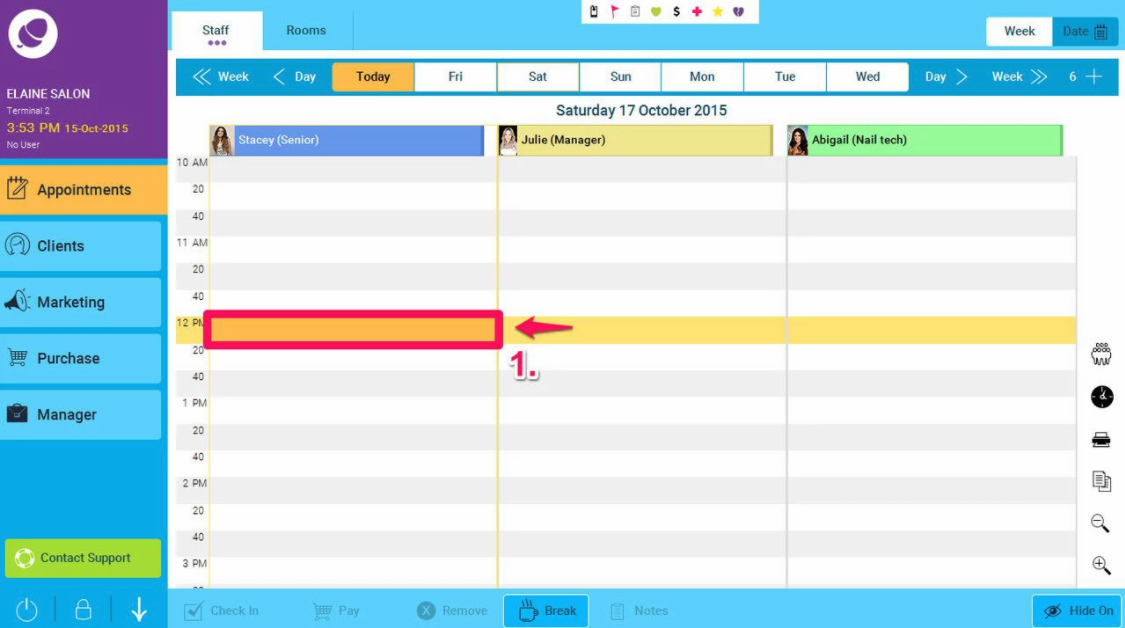
- Double click on a free appointment slot (or double tap with a touchscreen)
- Enter the Name of the client
NOTE: If adding a new client, then you will need to press the Add Client button before proceeding to the next stage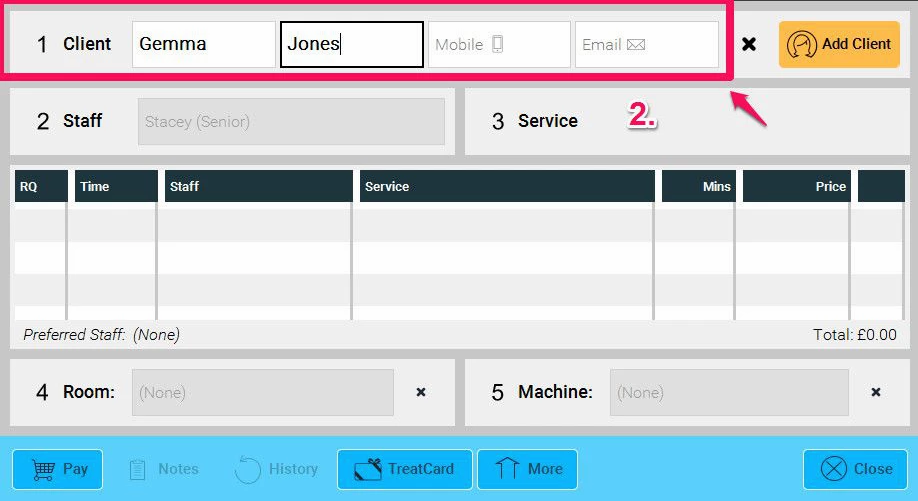
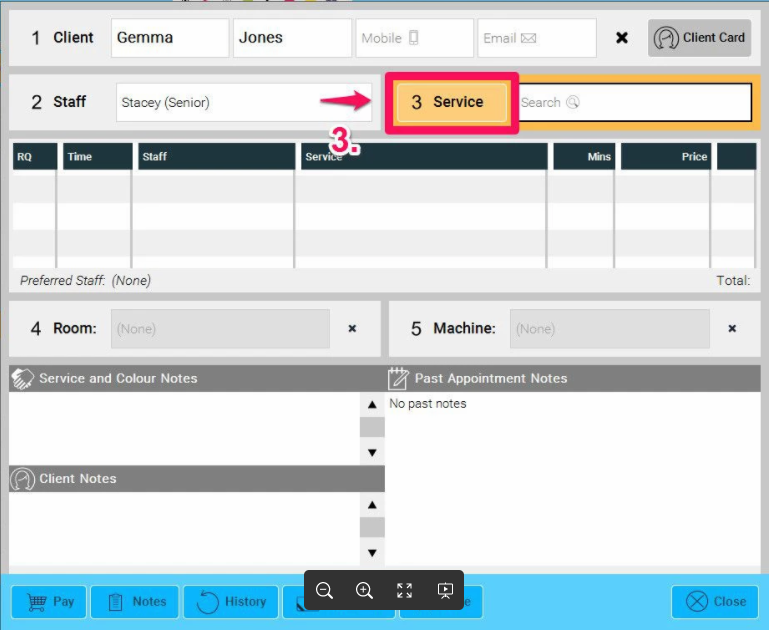
- Then click the Service button which should be orange
- Select the Service Category
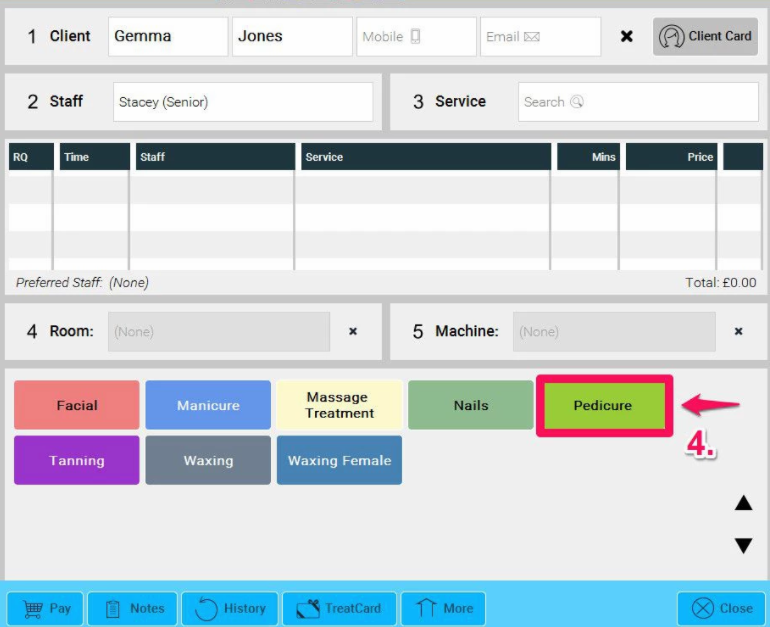
- Select the Service
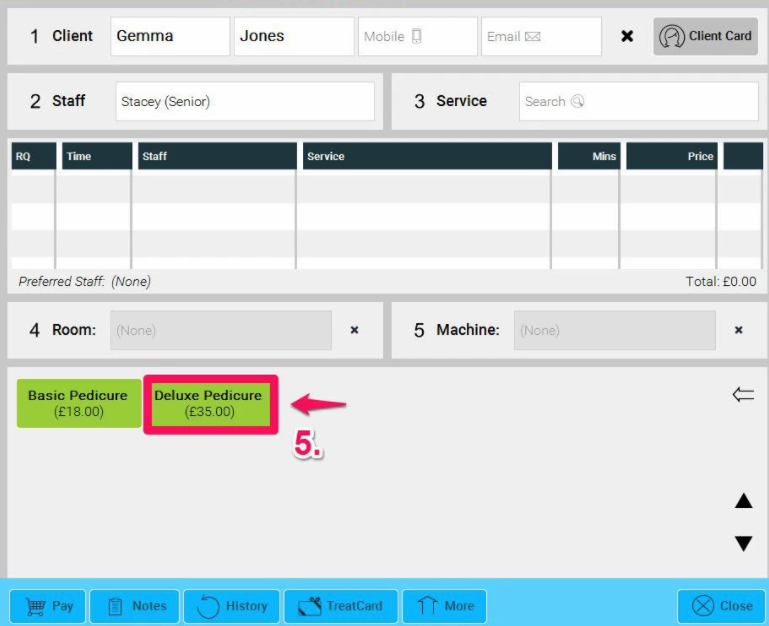 NOTE: You can also drag and drop the Service from the list to the appointment screen if you need more visibility on where the available slots are on the screen.
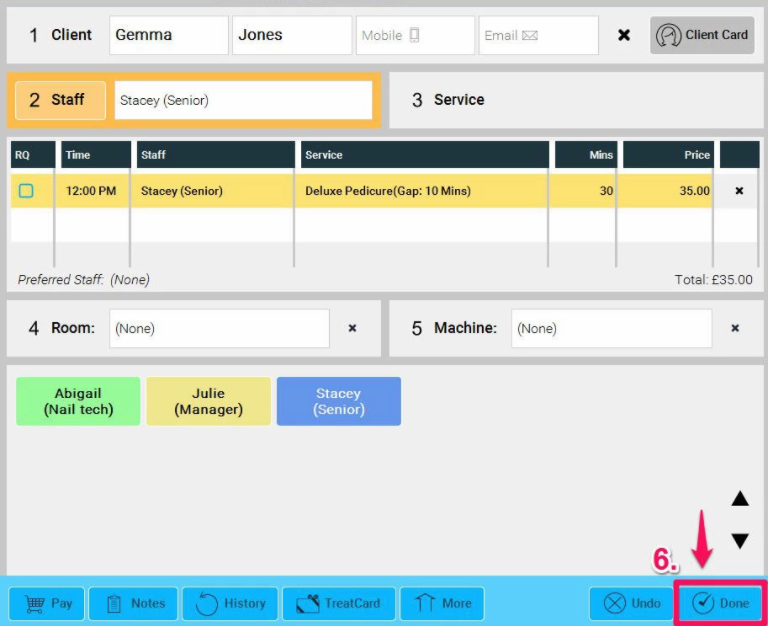
- Click Done
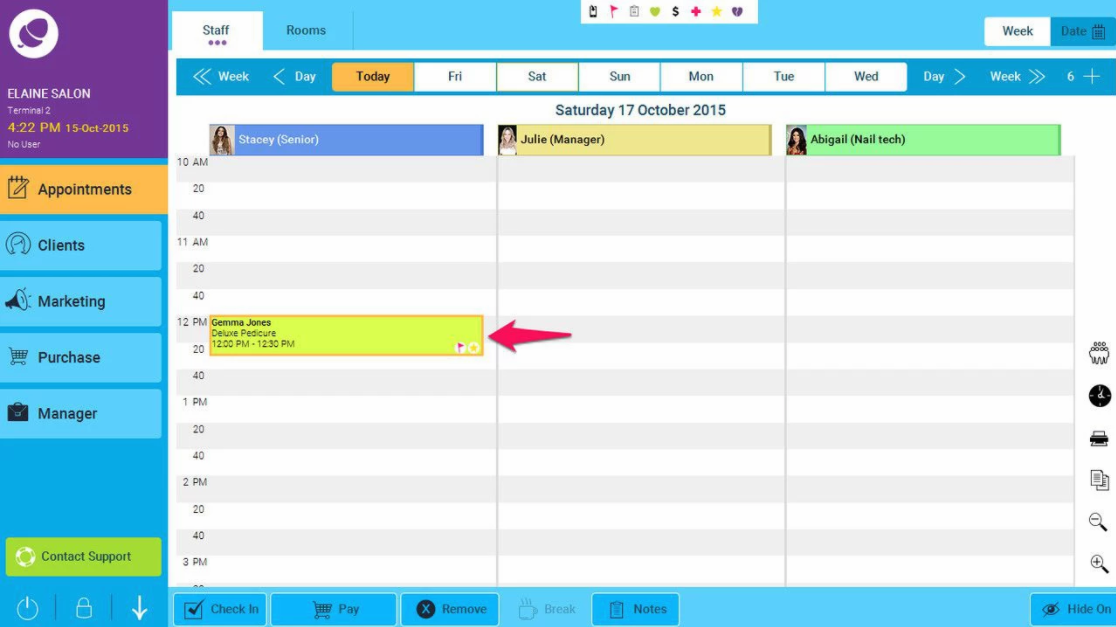
- Appointment will then be added to the appointment calender as shown below.
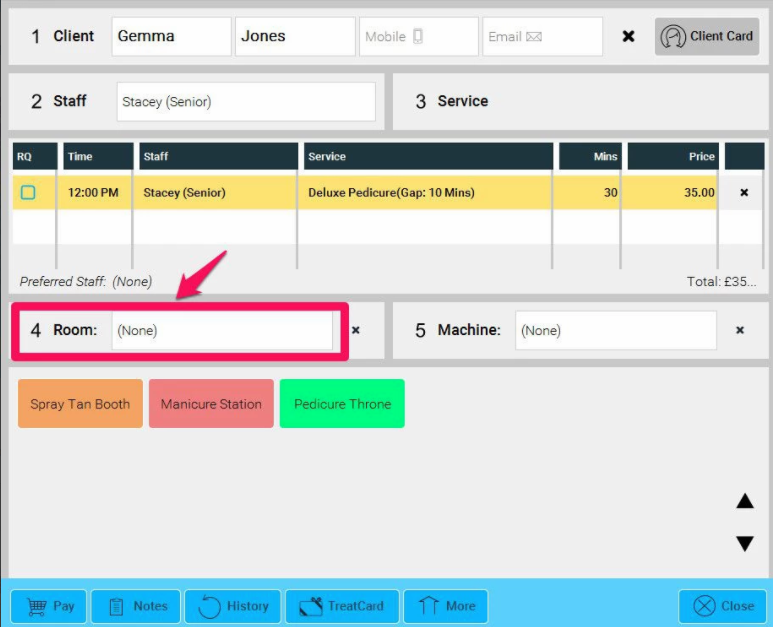
- NOTE: You can manually select a Room during the booking process by clicking here.